Learn
X resources explained
Use widget names, classes, application defaults and xrdb to change an Xt application without rebuilding it.
An Xt application can obtain labels, colours, fonts and other settings from a resource database. These are named values looked up through the widget tree. They are separate from the C code that implements the program’s behaviour. Motif and Athena both use Xt resources; not every X11 application does.
One program, two appearances
Download resource-demo.c and ResourceDemo.ad into the same directory. Compile and run the program using your installed Motif development files:
cc -std=c99 -Wall -Wextra -o resource-demo resource-demo.c -lXm -lXt -lX11
./resource-demo
For a local library checkout, adapt the flags in the first example’s build instructions. The screenshots below use the locally built Motif library and MWM.
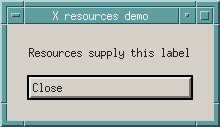
Now close it and launch it with the supplied overrides:
XENVIRONMENT="$PWD/ResourceDemo.ad" ./resource-demo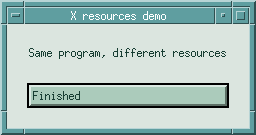
XENVIRONMENT selects a resource file for this invocation. It is a convenient way
to experiment without altering the X server’s shared resource settings. Other
resources in your session may also match, so your first window need not look
identical to the clean-session screenshot.
Read a resource specification
The override file contains:
! Personal overrides for resource-demo; load with XENVIRONMENT.
ResourceDemo*background: #dbe5df
ResourceDemo*foreground: #173d32
ResourceDemo*panel.spacing: 22
ResourceDemo*heading.labelString: Same program, different resources
ResourceDemo*quit.labelString: Finished
ResourceDemo*quit.background: #abcbbb
The left side describes a match through the application’s hierarchy. The right
side is the value, represented as text. Xt’s type converters turn resource-file
strings into the types expected by widgets—for example, a colour name into a
pixel value. A line beginning with ! is a comment.
Use resource names such as background and labelString here, not their C
macros XmNbackground and XmNlabelString. Names and classes are case-sensitive.
Instance names and classes
This program creates the following hierarchy. The first column names each instance; the second gives its class:
| Instance path | Class path |
|---|---|
resource-demo | ResourceDemo |
resource-demo.panel | ResourceDemo.XmRowColumn |
resource-demo.panel.heading | ResourceDemo.XmRowColumn.XmLabel |
resource-demo.panel.quit | ResourceDemo.XmRowColumn.XmPushButton |
The application class ResourceDemo comes from XtVaAppInitialize. Its default
instance name comes from the executable name; Xt’s -name option can change it.
Names such as panel and quit come from widget creation calls. Class names
come from the toolkit’s widget classes.
A resource has its own name and class too: background/Background or
labelString/LabelString. These allow either individual or broader matches.
ResourceDemo*quit.background: #abcbbb
ResourceDemo*XmPushButton.background: #abcbbb
The first targets the instance named quit. The second targets PushButton-class
widgets throughout this application, so it would affect other push buttons
added later as well.
The difference between dot and star
.is a tight binding: match the next component directly.*is a loose binding: allow intervening components to be skipped.
For this particular widget tree, both of these can set the button label:
resource-demo.panel.quit.labelString: Finished
ResourceDemo*quit.labelString: Finished
The exact instance path depends on the executable name and parent hierarchy.
The second continues to match if another container is inserted above quit.
An unqualified *background can affect many applications when put in a shared
database, so start with the application class while experimenting.
Matching is hierarchical. At a matching level, instance names take priority over classes, and tight bindings over loose bindings under the X resource matching rules. Avoid competing broad rules while learning: start with a complete path and loosen it deliberately.
Where values come from
Xt assembles resources from several places: application-defaults files, server and screen resource properties, user environment files, and command-line options. Source merging and pattern matching are separate steps. A later source can replace an identical specification; a more specific competing pattern can still win when a widget’s resource is looked up.
Application defaults are the program’s shipped resource file, usually named
for its application class—for example, ResourceDemo. Install locations vary;
XFILESEARCHPATH and XUSERFILESEARCHPATH control relevant searches. For a
small development experiment:
mkdir -p app-defaults
cp ResourceDemo.ad app-defaults/ResourceDemo
XFILESEARCHPATH="$PWD/app-defaults/%N" ./resource-demo
%N expands to the application class. This explicitly replaces the normal
application-defaults search path for this process. Our .ad file is an override
sample rather than a complete defaults file: using it this way also demonstrates
why a shipped defaults file should contain all of an application’s intended
baseline settings.
Fallback resources are the string array passed to initialisation in our C source. Xt uses them when it cannot find the application-defaults file; they are not a universal layer that fills every missing entry in an existing defaults file. Keep that distinction in mind when packaging a program.
Command-line resources are useful for a quick, narrowly targeted experiment:
./resource-demo -xrm 'ResourceDemo*heading.labelString: Set on the command line'Arguments in C can override the database value at widget creation. Later
XtVaSetValues calls can change a widget again. The demo intentionally does not
assign its labels and colours this way, allowing the file to control them.
What xrdb does
xrdb reads and writes resource properties on the X server. Inspect the current
settings with:
xrdb -queryTo merge the supplied overrides into the server resources:
xrdb -merge ResourceDemo.ad
./resource-demo
This affects matching applications started on that display, so use the scoped
ResourceDemo prefix. -merge preserves unrelated entries; -load replaces the
selected resource property instead. For temporary experiments, prefer the
per-process XENVIRONMENT command above.
Xt reads these settings during initialisation. Already running applications do
not generally refresh their widgets just because xrdb changed a property;
restart the demo. A desktop session may arrange to load ~/.Xresources, but
merely creating that file does not guarantee it is used. ~/.Xdefaults is also
not interchangeable with the server database: its role depends on the Xt
resource-loading procedure.
When a setting has no effect
- Check the widget’s real instance name, class and parent hierarchy. A title bar’s text is not the application class.
- Check spelling and case. Consult the widget’s manual for its supported resources and types.
- Try a precise
-xrmrule and restart the application. Then check whether a competing instance-specific rule beats a class-wide one. - Inspect the C code for explicit creation arguments or later setters.
- Confirm the value belongs to the application. Window-manager frame colours and title-bar fonts are settings for MWM or your other window manager.
Keep geometry and font choices together: a larger font may require more space. Resources also cannot add arbitrary widgets or callbacks to a conventional Xt program; the application must implement that behaviour. Xmt adds facilities for resource-described interfaces beyond the basic Xt mechanism.
References and next steps
The Xt specification’s resource-loading section
and installed XrmGetResource, XtGetApplicationResources and xrdb manuals
describe lookup and loading in detail. The Xlib resource-manager chapter
explains matching rules. Use the manuals alongside the small executable to check
one rule at a time.
Next, try styling controls in the widget gallery. Notice that its labels are explicitly set in C, unlike this resource-focused example—an intentional illustration of why some settings can be overridden and others cannot.